Enable the DA Bridge skill in the Alexa app
If you are here, chances are you have already done so. If not, open the Alexa app, click on the menu icon at the bottom, tap "Skills & Games", search for "Domoticz Bridge" and enable it.
After enabling the skill, the app will ask for your credentials to link the skill to your account.
Log in to DA Bridge
Come back here after enabling and linking the skill in the Alexa app to set up the skill. You can log in using Amazon or using your e-mail address.
Note: When logging in using your e-mail, make sure you use the same e-mail address as for your Amazon account. Otherwise we don't know that it's you.
Create a user in Domoticz
In Domoticz, go to Settings -> Users and create a user for us to log in as. Give this user access to the devices you want to be able to control or query using Alexa
Note: Scenes and Groups are accessible for any user
Name your devices
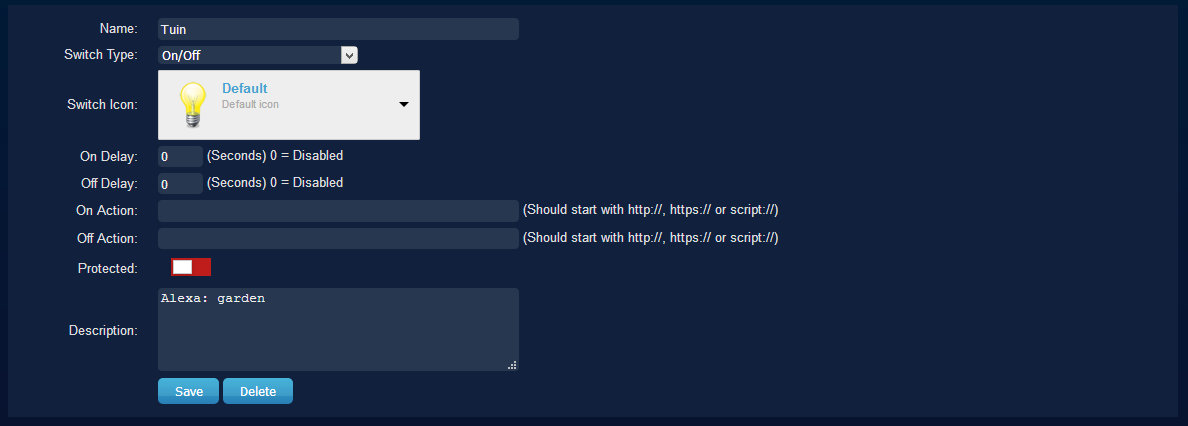
Chances are your device names in Domoticz are not in the same language you use to talk to Alexa. In that case you can set up alternative names to be used by Alexa by typing "Alexa: alternative name" in the description field of the device. Like this:
Tell us how to log on to your Domoticz
After logging in, go to the Domoticz settings page and enter your Domoticz URL as wel as a login and password.
Test your settings
Go to the Dashboard page to check if the connection to your Domoticz works.
Discover devices
If the connection to your Domoticz is working and you are satisfied with the names, ask Alexa to discover devices After some time Alexa will tell you how many devices were found. You can now control and query these devices using Alexa.